INTERFACE SHOWCASE
Visual & Intuitive UI
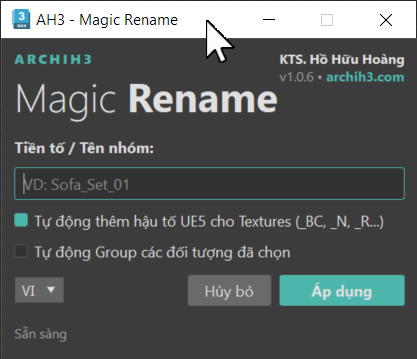
Real screenshot of the plugin user interface running natively inside 3ds Max.
Python plugin for 3ds Max to automate asset preparation for Unreal Engine 5. Batch renames objects with ASCII prefixes, auto-groups, renames materials, and standardizes texture suffixes. Built-in backup, rollback, and Ctrl+Z undo.
Real screenshot of the plugin user interface running natively inside 3ds Max.
Eliminates 90% of missing texture warnings, incorrect file names, or messy hierarchies when importing Datasmith into UE5.
Automatically strips special characters and Vietnamese accents, transforming object names into safe ASCII strings with prefixes (e.g. SM_, M_, T_) required by Unreal Engine.
Groups all components of selected assets under a single group containing the common prefix, ensuring clean Outliner hierarchies in Unreal Engine.
Automatically maps and renames material instances applied to the selected objects, injecting standard material prefixes to align with asset management guidelines.
Identifies main texture channels on Corona/V-Ray materials and copies/renames maps with standard UE5 suffixes: Base Color (_BC), Normal (_N), Roughness (_R), Opacity (_O), Emission (_E).
Automatically copies and renames physical texture files on disk and updates path references within 3ds Max. Includes automatic backup and rollback routines to prevent file loss.
Deeply integrated with the native 3ds Max Undo system. Revert all rename, grouping, material, and texture path modifications instantly using standard Ctrl+Z keystrokes.
Quickly prepare your models before exporting to Datasmith format.
Select the 3D meshes and groups that you want to prepare for Unreal Engine 5 in your viewport.
Open the plugin, type your ASCII prefix (e.g. SM_SofaModern), and toggle map/material options.
Click Rename. Objects are renamed, grouped, and texture paths are mapped ready for Datasmith export.
Improving your Unreal Engine workflow. Download and use version 1 completely free of charge.
Technical details for exporting 3ds Max models to Unreal Engine 5.
Unreal Engine does not support special characters, Vietnamese accents, or whitespaces in asset names. These characters often trigger broken links or unreadable assets. Magic Rename automatically strips them out.
The plugin scans object materials (Corona/V-Ray), extracts main texture maps, and copies/renames physical files on disk with standard Unreal suffixes: Base Color to `_BC`, Normal to `_N`, Roughness to `_R`, Opacity to `_O`, and Self-Illumination to `_E`.
The plugin integrates with the native 3ds Max undo system. Simply press Ctrl+Z to undo the entire renaming cycle: object names, groups, material updates, and texture paths are restored immediately.